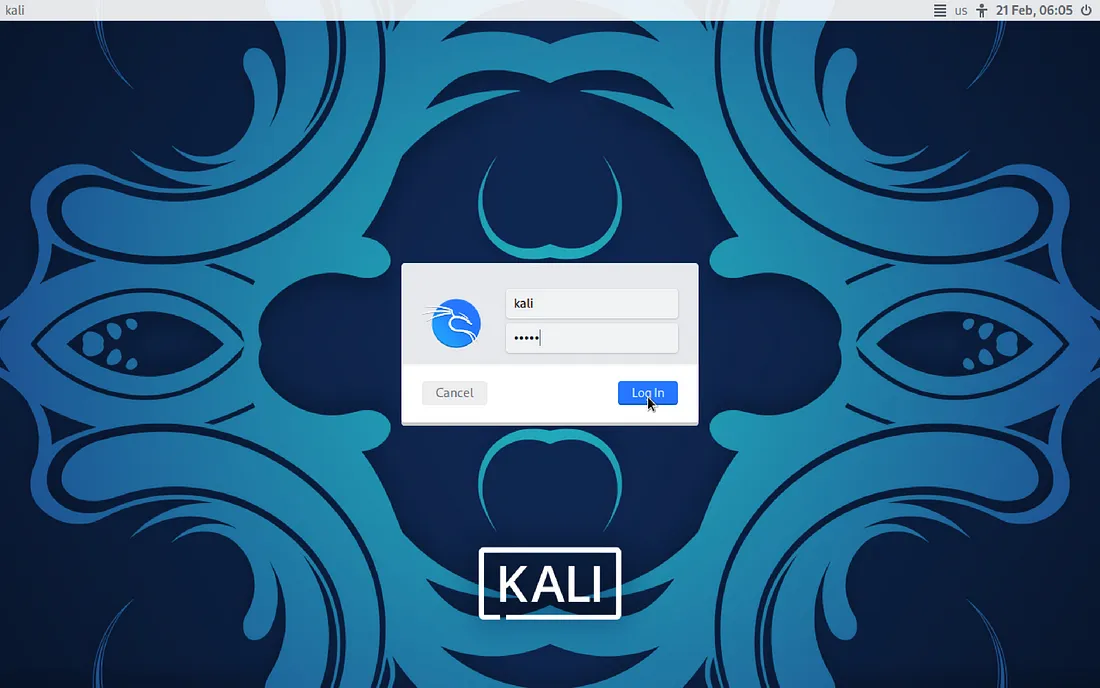
Reset Forgotten Password on Kali Linux in VM or Dual Boot
· 2 min read
Step 1: Open the Boot Screen
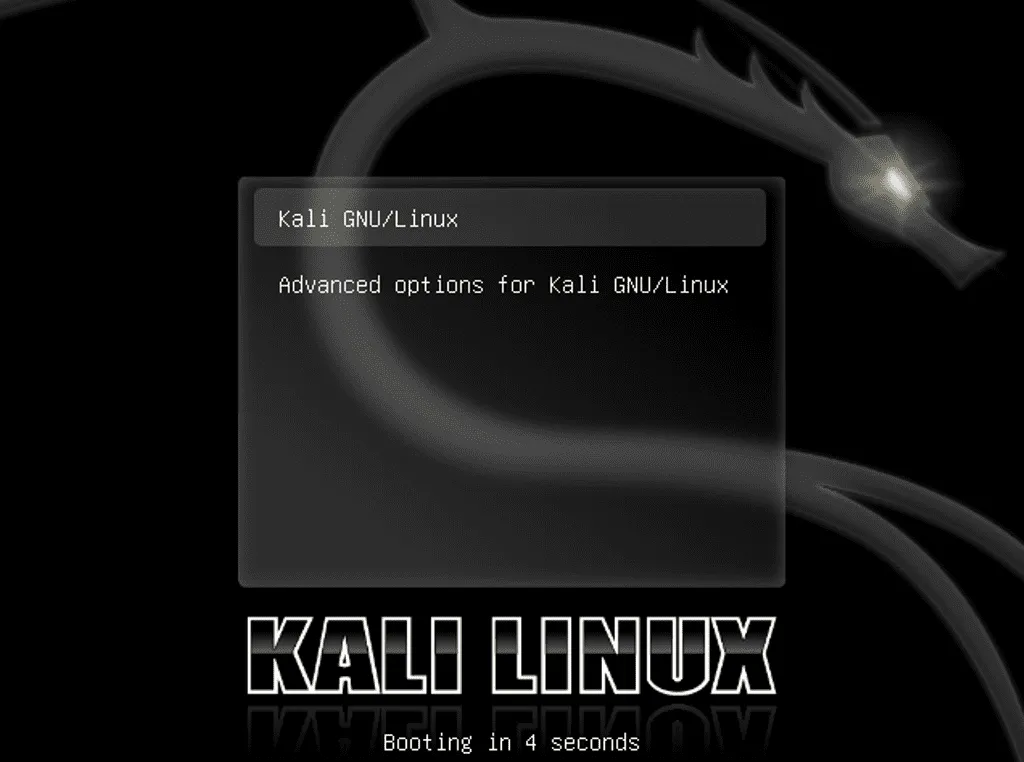
When you start your computer, you will see the Boot Screen.
Step 2: Open GRUB (Bootloader)
GRUB (Grand Unified Bootloader) is responsible for initiating the operating system during startup. To access it:
Press e to open the GRUB menu.
Step 3: Modify the Boot Parameters
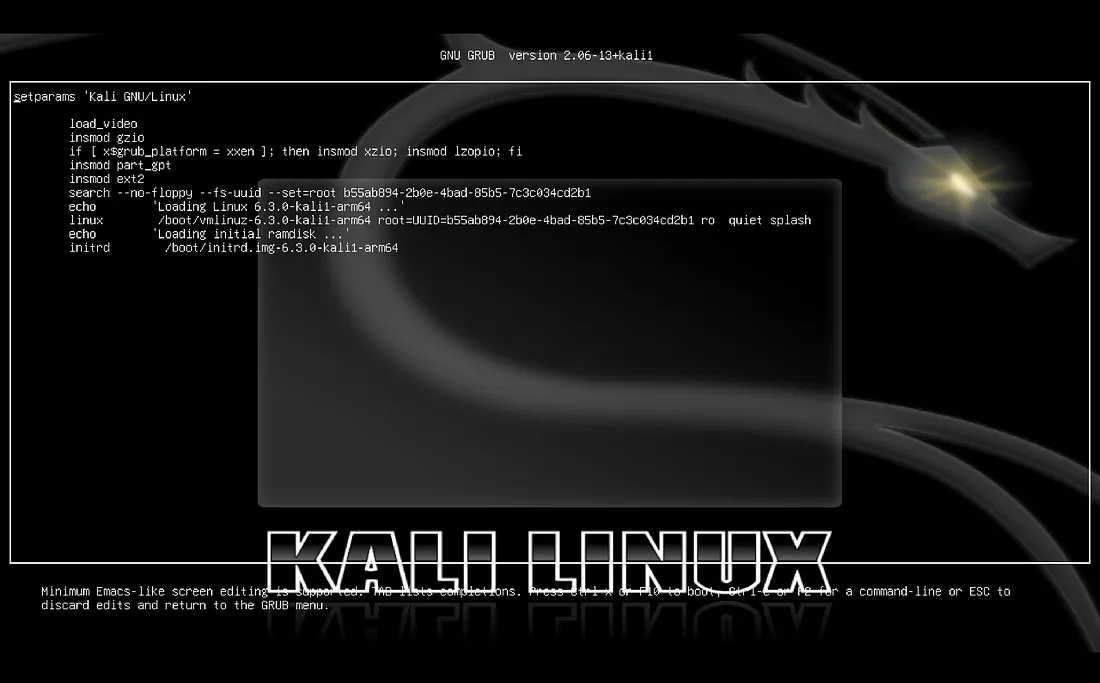
You need to change the boot parameters.
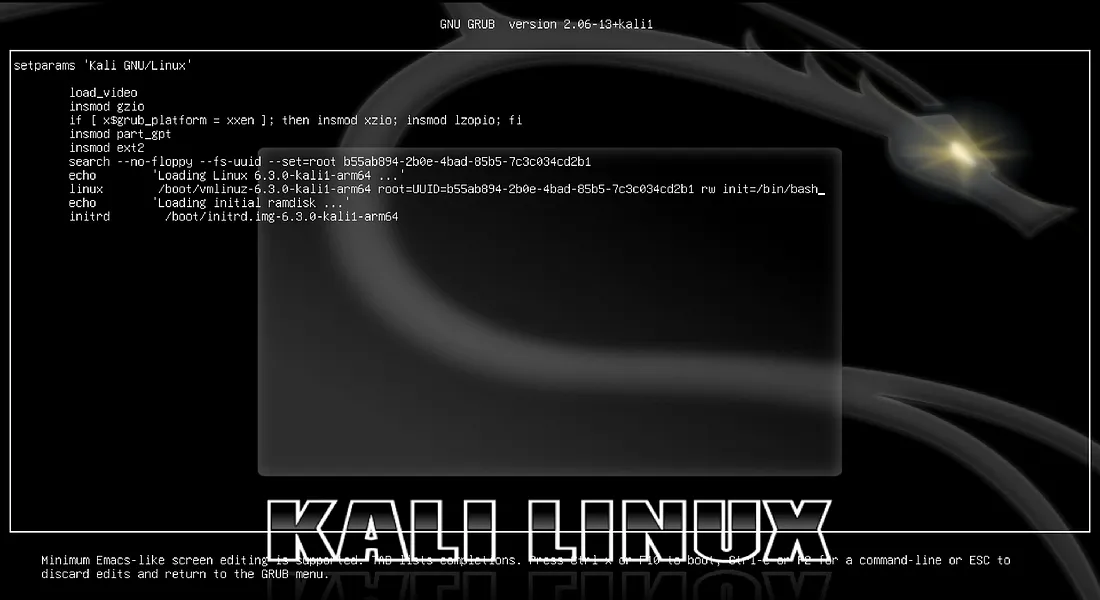
Before Modification:
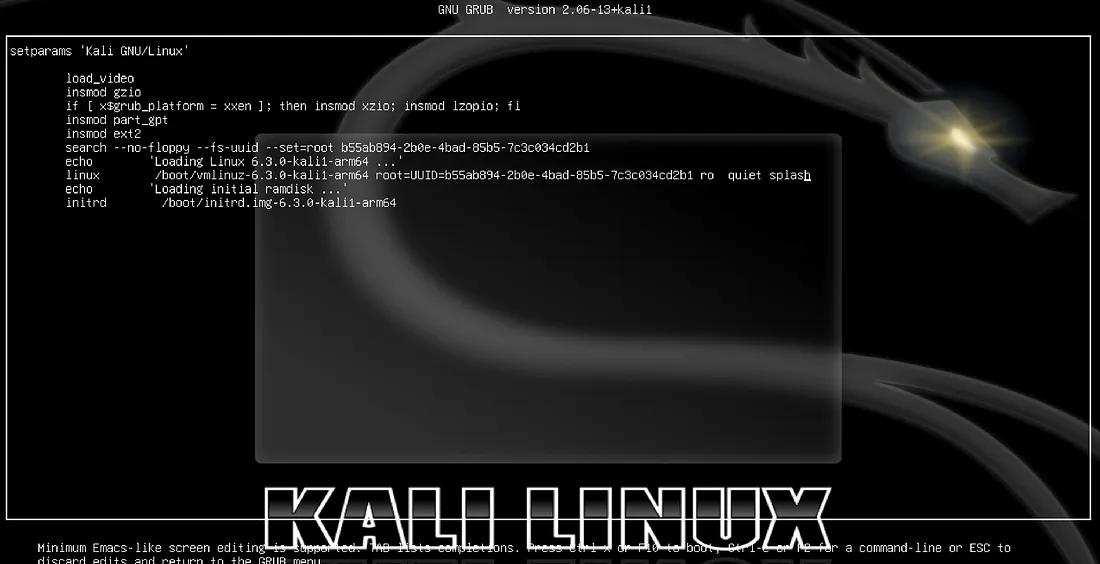
Modify This Line:
Replace ro quiet splash with rw init=/bin/bash:
# Original
ro quiet splash

# Modified
rw init=/bin/bash
ro→ Read-only moderw→ Read & write mode
Now, press CTRL + X to exit the GRUB menu and boot into the modified mode.
After Modification:
Step 4: Add a New Password
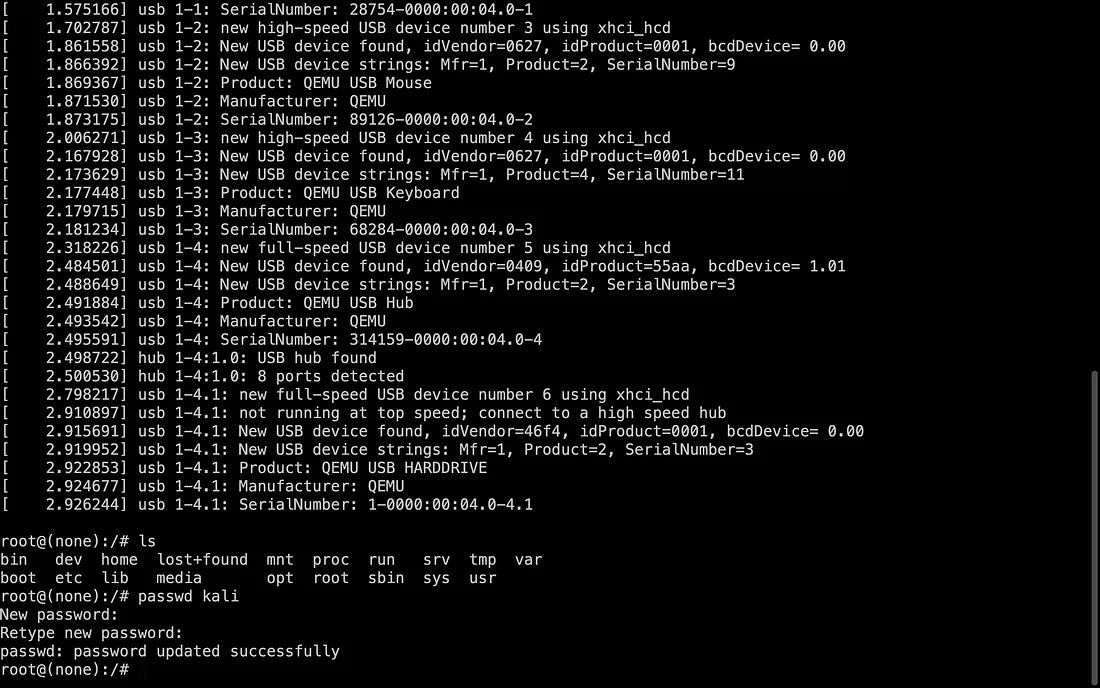
After exiting the GRUB menu, the root shell prompt (a terminal with superuser access) will appear.
Find Your Username
Run the following command to check available users:
ls /home
Change the Password
Replace username with your actual username and set a new password:
passwd username

Step 5: Reboot the System
After resetting the password, reboot your system by typing the following command:
reboot -f
-f→ Forces an immediate reboot.
Now, log in to your Kali Linux system with your new password!